What are Google Gemini Gems?
Google Gemini Gems are a personalized AI assistant feature launched by Google in August 2024. You write the role, instructions, and behavior once, save it as a "Gem", and every time you open it those settings load automatically. Gems became free to use for all Gemini accounts starting in 2025.
In short, a Gem is Google's equivalent of ChatGPT's GPTs — a custom AI assistant that specializes in specific tasks. The difference is that Gems are built on top of Gemini, so they inherit Google's ecosystem integration with Search, Drive, Docs, and Gmail — an advantage that other platforms struggle to match.
This site's RayStock AI Stock Analysis is a perfect example — it's preset as a Taiwan stock analyst. Open it and start asking about market data, institutional flow, or dividends, and it analyzes from that angle right away. No need to explain the context each time — it even automatically uses the right professional terminology.
What problem do Gemini Gems solve?
Have you ever found yourself in this situation: every time you open Gemini, you have to type out a long setup — "You are now a XXX expert, please answer from a XXX perspective, use XXX format..." By the time you finish writing the setup, you don't even want to ask the question anymore.
That setup text is called a "Prompt" — its purpose is to give the conversation a specific role and response style. But having to type it every single time is a real hassle.
Gems solve this problem. Write your settings once, save them as a Gem, and every time you open it, those settings are automatically loaded. You can jump straight to asking questions without repeating yourself.
How are Gems different from regular Gemini?
A table makes the differences clearer:
| Feature | Regular Gemini | Gemini Gems |
|---|---|---|
| Conversation memory | Each conversation is independent | Maintains fixed role settings and instructions |
| Role setup | Must explain every time | Set once, apply forever |
| Depth of expertise | Generalist mode | Can go deep in specific domains |
| Sharing with others | Can't share settings directly | Can generate a share link |
| Ease of use | Use directly | Get the link and you're ready |
How do you use Gemini Gems?
Building your own Gem takes some effort, and writing a good Prompt is a skill that requires practice to get right.
The easiest way is to use a Gem link shared by someone else — click and start chatting. Here's a demo using "RayStock AI Stock Analysis" from this site. If stocks aren't your thing, feel free to head to the tool directory and pick a topic that interests you.
Go to the tool directory and find "RayStock AI Stock Analysis." You'll see its description, scope, version, update date, and disclaimer.
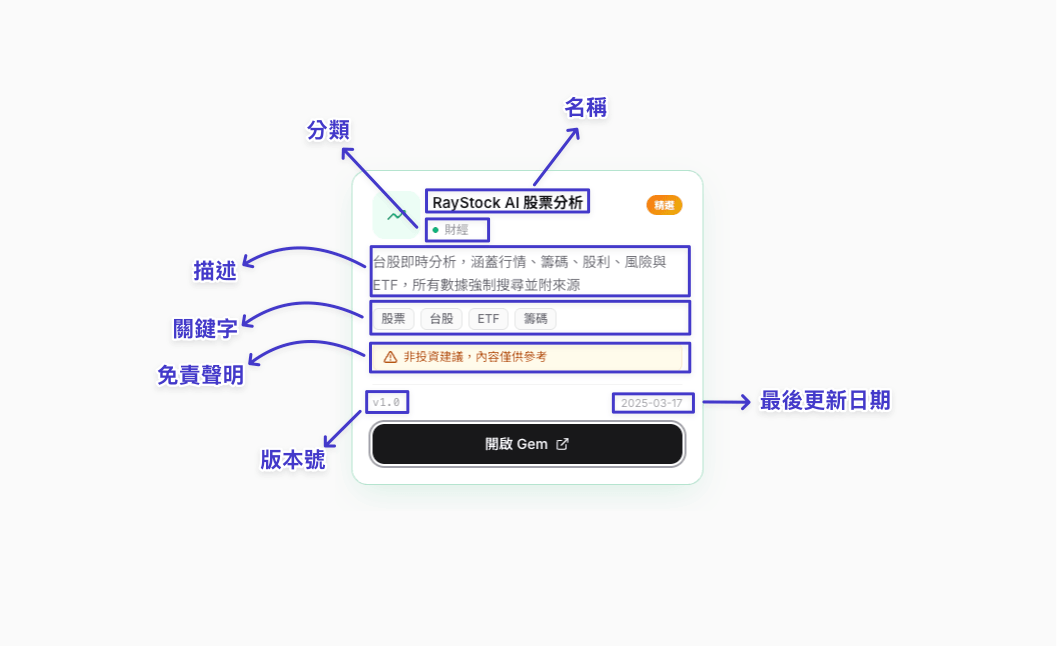
Click "Open Gem" to enter Google Gemini's chat window.
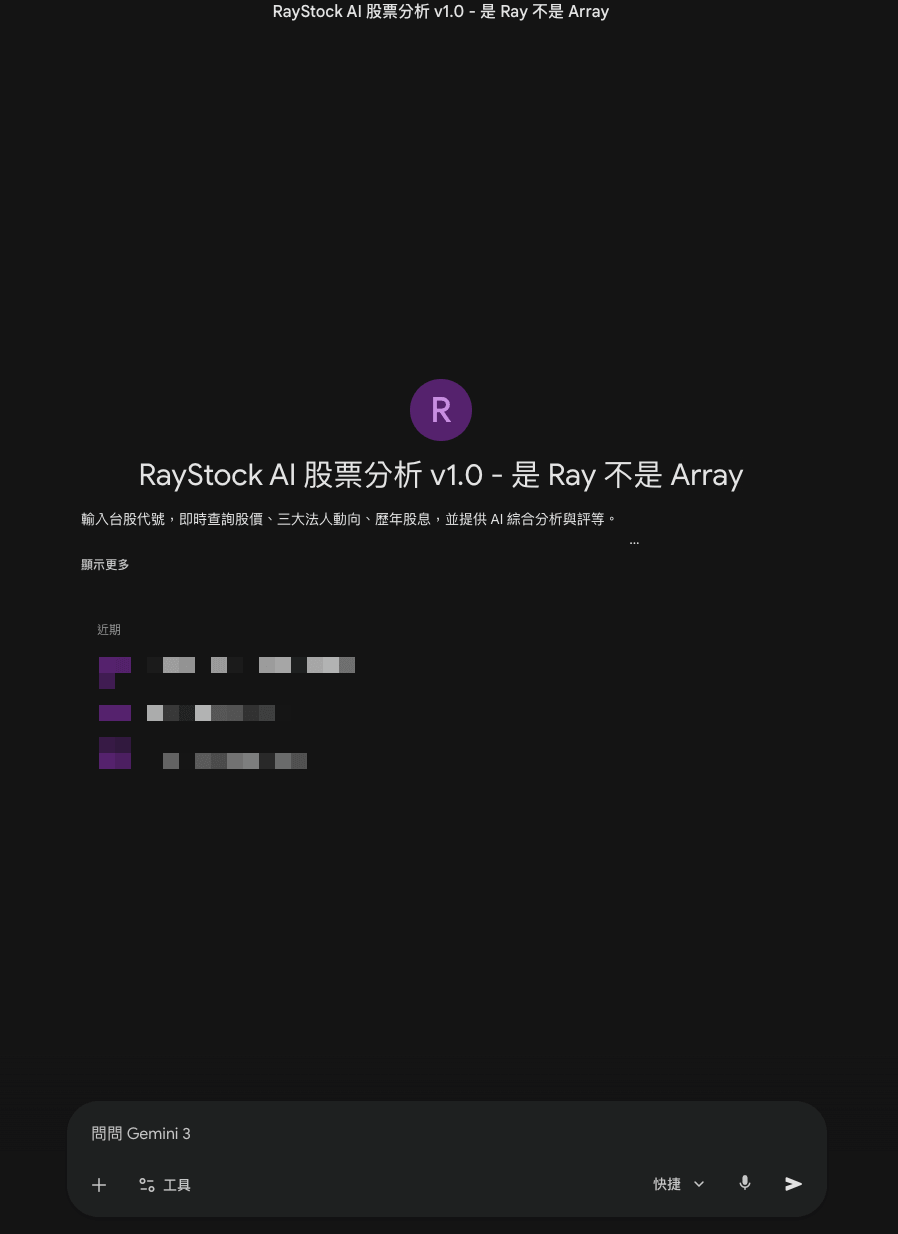
Now you can type something like "Can you give me an analysis of 0050?" After a moment, you'll get a comprehensive analysis covering institutional flow, dividends, technicals, and more. You don't need to explain what kind of analysis you want — it's all baked into the Gem's settings.
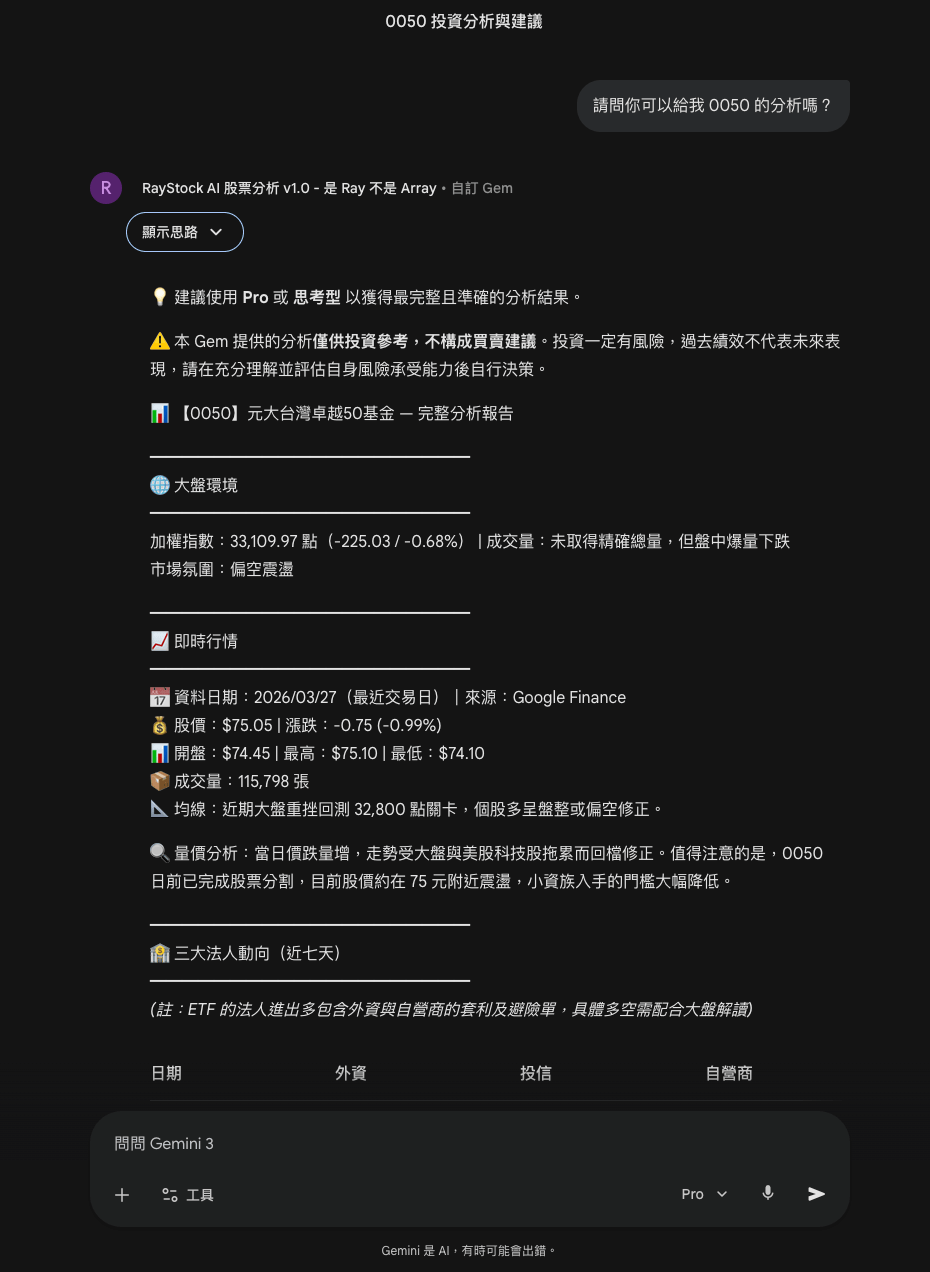
One thing to note: when sending a message, make sure the dropdown below the input box is set to "Pro" or "Thinking" mode. This reduces AI hallucinations and improves answer accuracy.
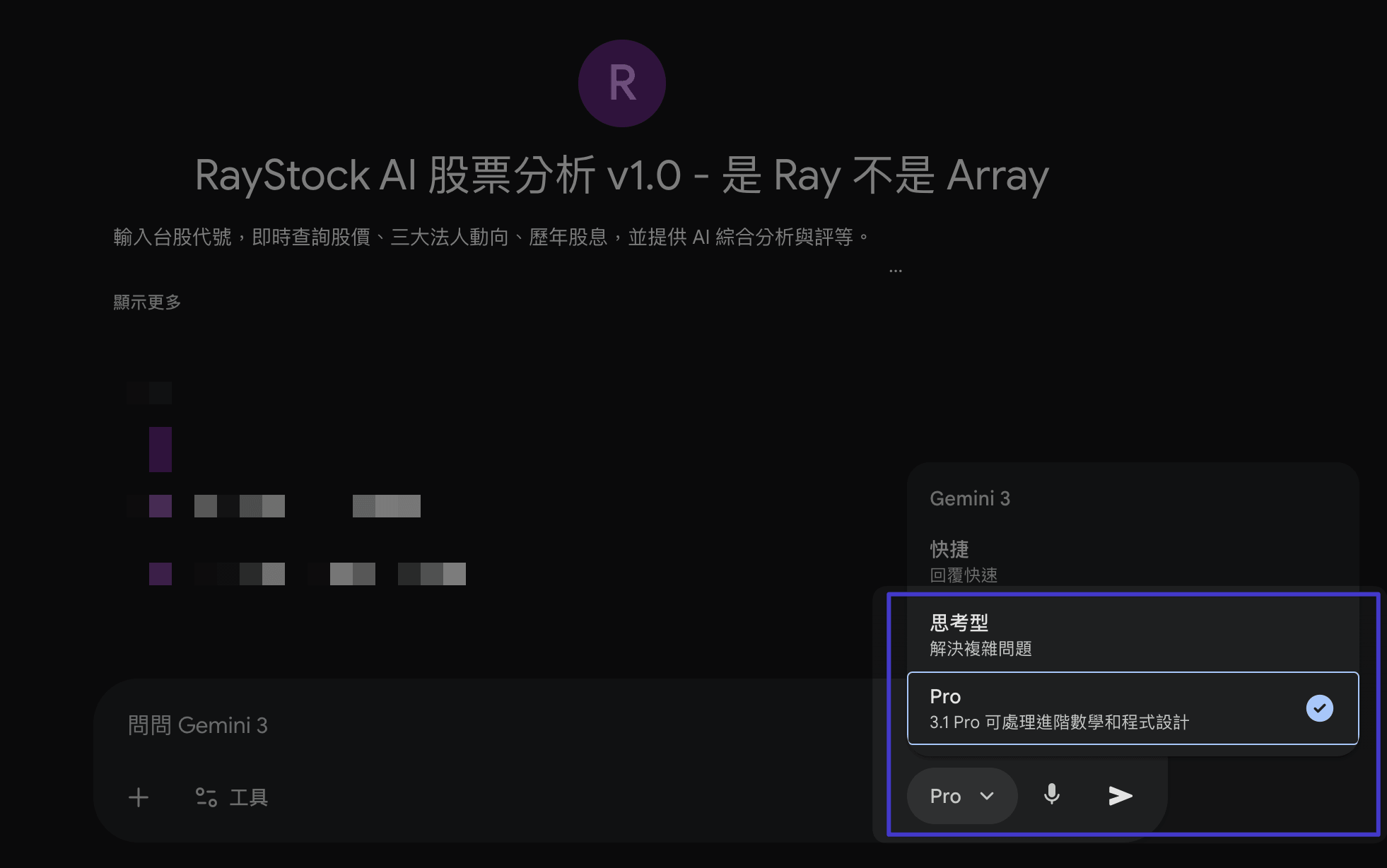
We recommend using Pro mode — that's when Gemini thinks more deeply and references the Prompt settings built into the Gem, letting it perform at its full potential.
How to build your own Gem
If you have specific workflows, preferred terminology, or need deep customization for a particular field, building your own Gem will fit better than using someone else's.
Creating a Gem requires a Gemini Advanced subscription (Google One AI Premium plan). Once built, you can keep it private or generate a share link for others to use.
- Find the creation page — In Gemini's left sidebar, click "Gems," then "Create new Gem" or the "+" icon in the top right
- Give it a name — Choose a clear name like "English Proofreading Assistant" so it's easy to find later
- Write the system instructions — This is the most important step. Describe the Gem's role, expertise, and response style in natural language — the more detail, the better it performs
- Upload reference files (optional) — Upload PDFs or text files as a knowledge base for the Gem to reference during conversations
- Save and test — After saving, try a few questions in the preview panel to make sure it's on the right track
- Share (optional) — If you want others to use it, click "Share" to generate a public link
For a detailed creation tutorial, check out: Gemini Gems Tutorial: Easily Build Your Custom AI Assistant.
Featured Gems on This Site
Now that you understand the basics, try getting started with these popular Gems:
- RayStock AI — Taiwan Stock Analysis: Real-time Taiwan stock data on market activity, institutional flow, dividends, and ETFs — every data point comes with a source, so you don't have to worry about AI making things up
- RayLabor — Labor Law Expert: Look up the latest labor laws and official interpretations, automatically determines whether you're the employee or employer, and provides strategic advice
- RayFit — Weight Loss Companion: A science-based approach to healthy weight loss — no anxiety-selling, no extreme diets
- RayJS — JavaScript Interview Practice: Questions, grading, and concept explanations all in one — build a solid JS foundation
FAQ
Are Gemini Gems free?
Yes, completely free!
Anyone with a Google account can use existing Gems. However, if you want to create your own Gem, you'll need a Gemini Advanced subscription (Google One AI Premium plan).
It's also worth considering upgrading your Google AI plan — the free version of Gemini Pro only allows about 5 uses per day. Upgrading significantly increases that limit and improves response speed.
Can I talk to a Gem in Chinese?
Absolutely!
Google Gemini supports Traditional Chinese. You can chat with a Gem in Chinese, and it will respond in Chinese.
Can multiple people use the same Gem? Is data shared?
Multiple people can use it, but data is completely separate.
A Gem's link only shares the "settings" — the AI assistant's role, expertise, and response style. When you click the link, Gemini creates a brand new, independent chat window for you. What you type is only visible to you.
In simple terms: everyone uses the same "instruction manual," but each person gets their own "notebook" — completely separate and invisible to each other.
Does a Gem remember previous conversations?
No.
Every time you open a new chat window, the Gem only carries its system instruction settings — it doesn't remember what was said before. If you want to continue a discussion, just keep chatting in the same window.
Why is it recommended to open Gems from this site?
Every Gem featured on this site is continuously optimized with updated prompts and versioning. When a Gem is updated, this site syncs the link so you always open the latest version.
If you bookmark a Gem link directly, once the author updates and generates a new link, your old bookmark will point to an outdated version — or it might stop working entirely.
We recommend bookmarking this site and opening Gems from here so you never have to worry about expired links.
Are the Gems on this site official Google products?
No.
All Gems featured on this site are created by third-party creators and are not official Google products. Please review the disclaimer on each Gem's page before use.